- Home
- Citation Generators
- How to Use Mendeley
How to Use Mendeley
Knowing how to use Mendeley, a powerful and free citation generator, will simplify your academic journey.
Managing references and creating citations can often be a daunting task.
However, citations are important because they give credit to original authors (thus avoiding plagiarism), validate your work, and help readers trace the sources of your information.
Mendeley offers a seamless and efficient solution to organize your research, collaborate with peers, and generate accurate citations effortlessly.
I'll walk you through the essential steps of installing Mendeley and show you how to use Mendeley to make the most of its robust features.
Learning how to use Mendeley is simple and only takes a short time.
Once you have mastered Mendeley, the benefits (time-saving and accuracy) will be enormous.
The process of using Mendeley is as follows:
Mendeley is a useful tool for your academic writing - now and in the future.
Remember, Mendeley is free!
How to Install Mendeley
Install Mendeley (if you have not done so) as follows:
- Go to Mendeley's official website.
- Create a free account if you do not have one (see Figure 1).
- Sign in to Mendeley.
 Figure 1: Mendeley Home Screen
- Select Download Mendeley Reference Manager (see Figure 2).
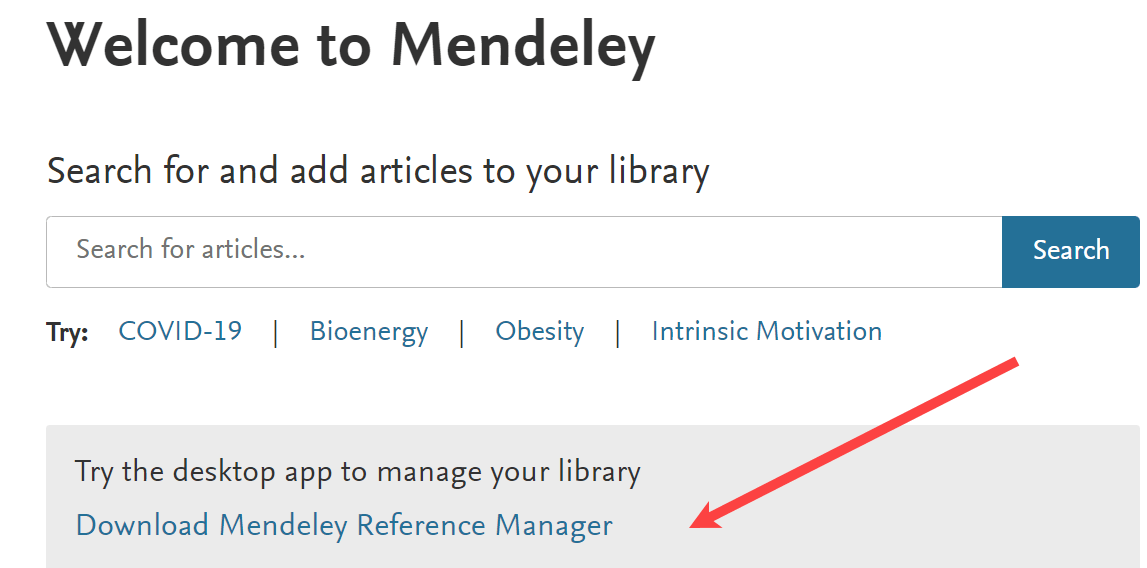 Figure 2: Mendeley Reference Manager Download
- Select Download now for Windows (see Figure 3).
Other options (MacOS, Linux) are available if not using Windows.
A file will be loaded into your Downloads folder.
Run that file.
The Mendeley Reference Manager Setup dialog box will appear.
Complete the setup.
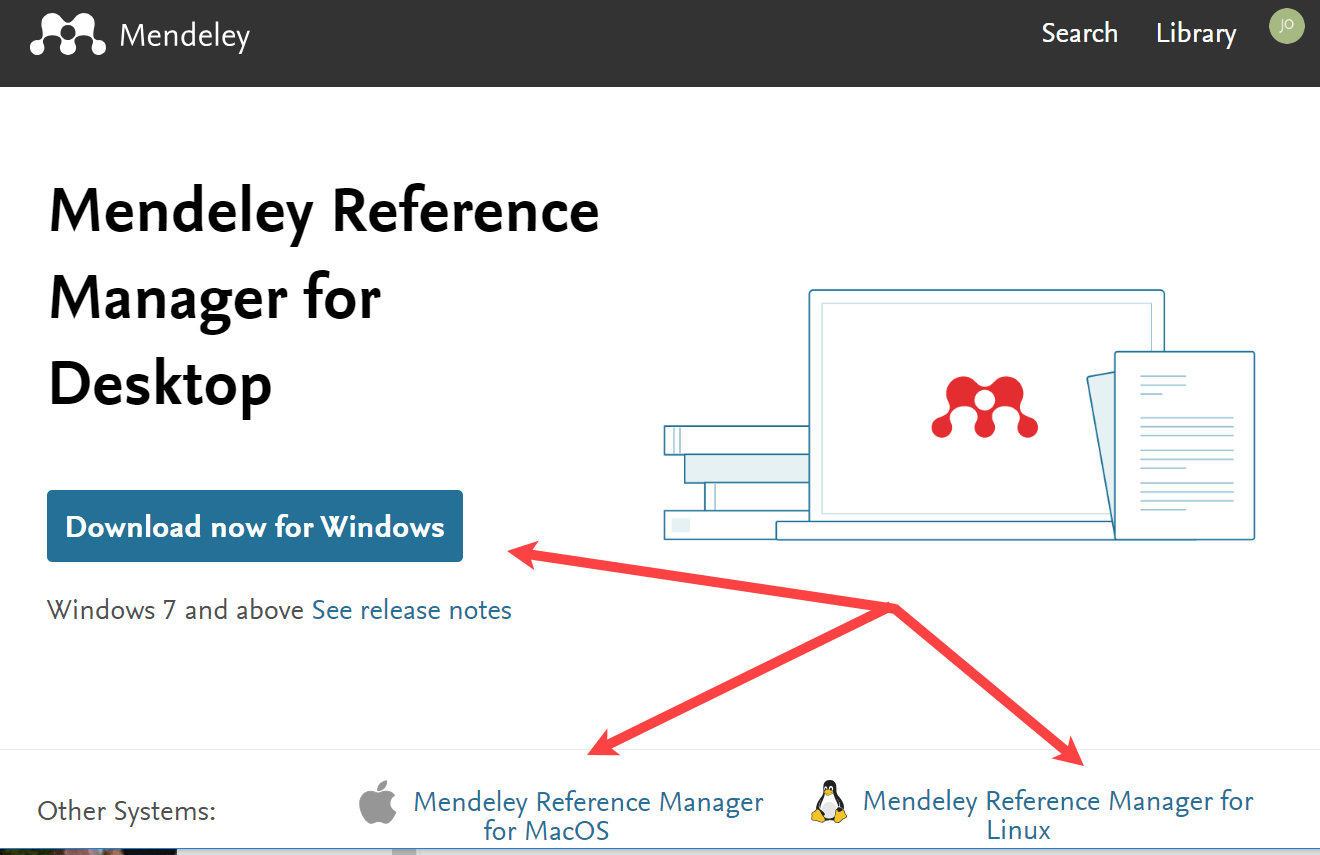 Figure 3: Mendeley Reference Manager Download
- Select Tools from the menu.
- Select Install Mendeley Web Importer (see Figure 4).
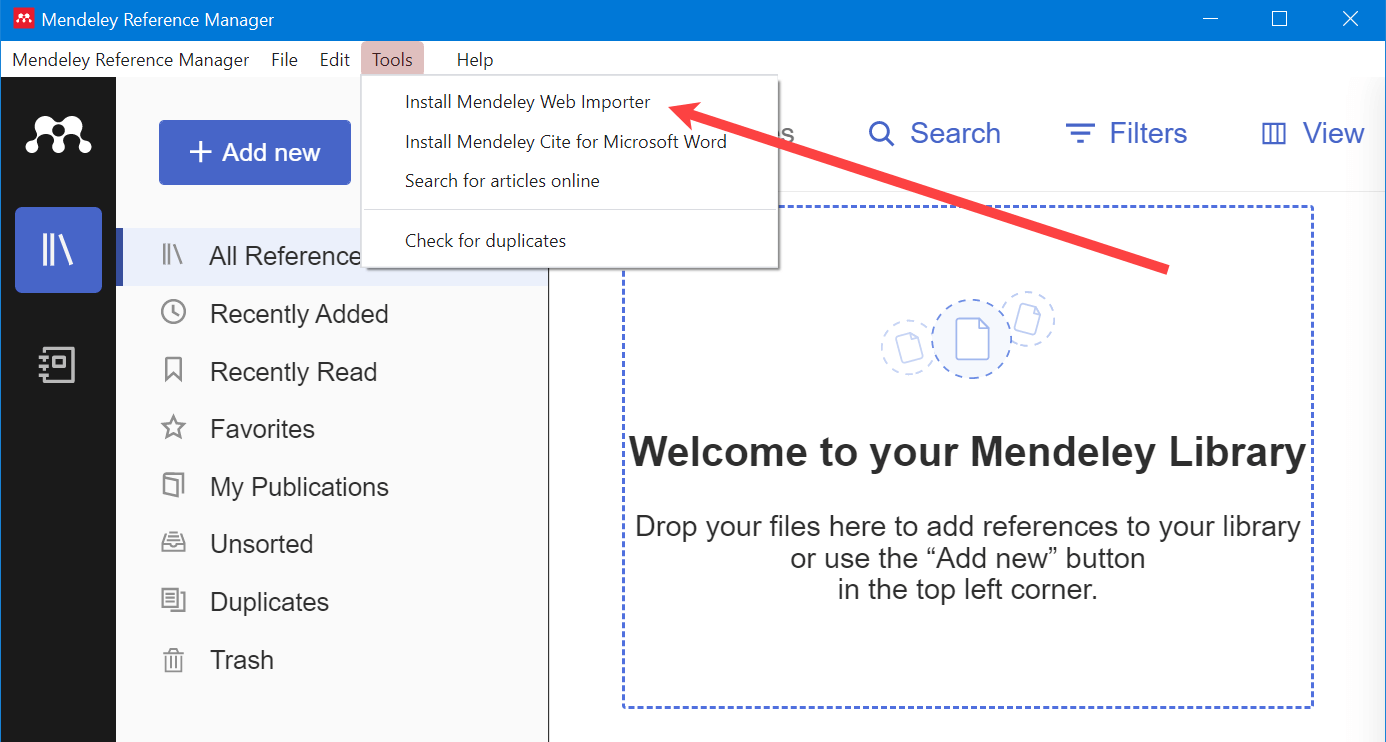 Figure 4: Select Mendeley Web Importer
- Select Get Web Importer for Chrome or Edge or whichever browser you are using (see Figure 5).
Mendeley will detect which browser you are using.
 Figure 5: Mendeley Web Importer
- Select the Tools tab.
- Select Install Mendeley Cite for Microsoft Word (see Figure 6).
The Mendeley Cite command will be installed in the References tab (see Figure 7).
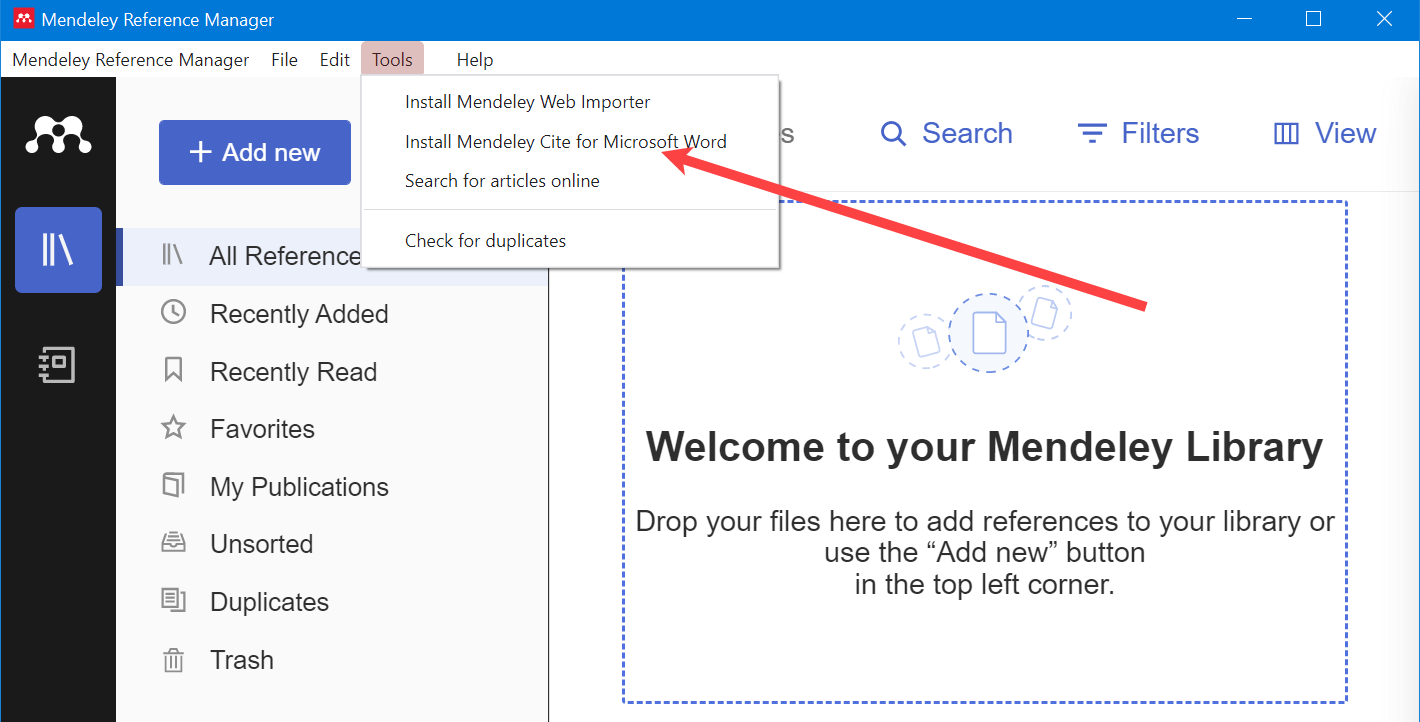 Figure 6: Install Cite for Microsoft Word
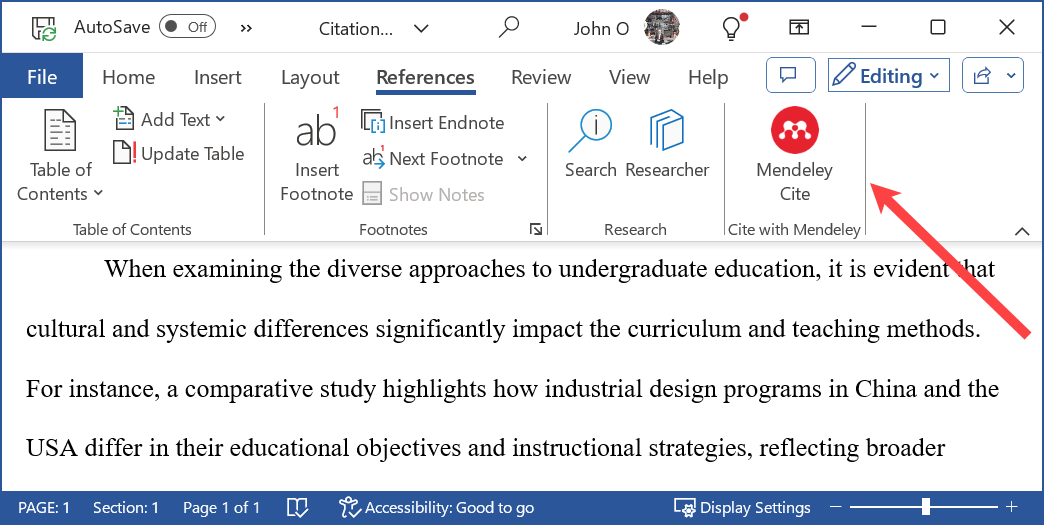 Figure 7: Mendeley Cite Command in References
You are now ready to use Mendeley to cite in a Word document.
How to Add Citations to the Mendeley Library
The Mendeley Library screen should be shown when you log in (see Figure 9).
If not, look for a library option as shown in Figure 8.
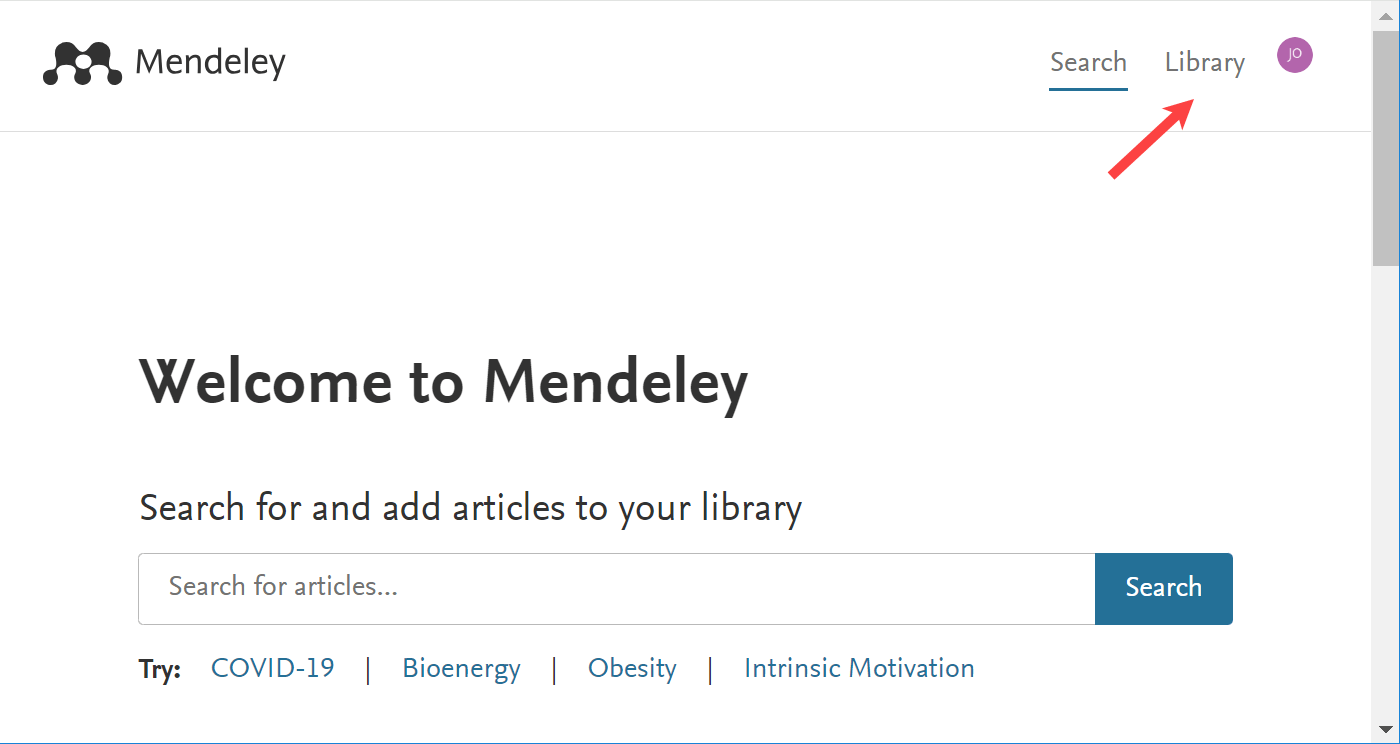 Figure 8: Select Library Option
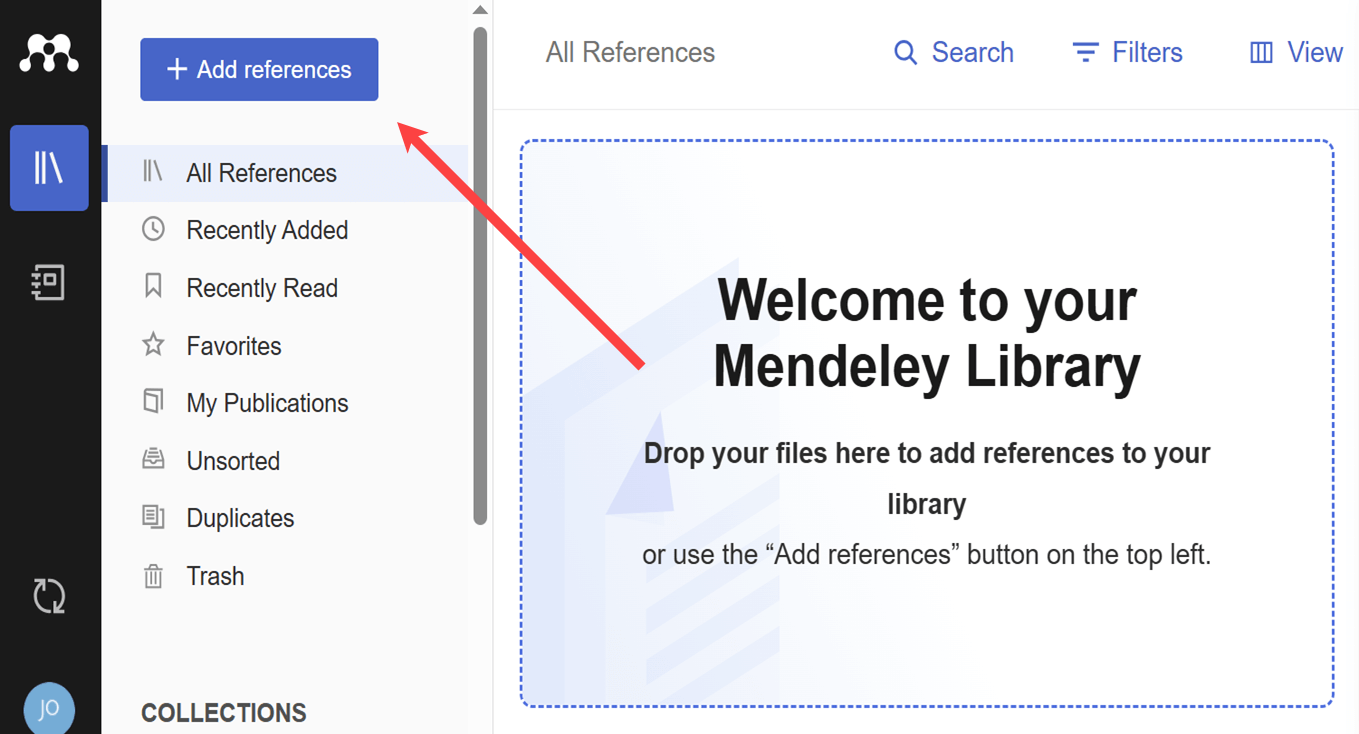 Figure 9: Mendeley Library Screen
Your Mendeley Library will be empty if you have not previously entered any citation data (see Figure 9), or previous citations added will be shown.
There are several ways to add citation items to your library. You can add:
- all the citation details into Mendeley,
- the citation details of any files (e.g., PDF files) you have stored on your computer, or
- the citation details of online articles (e.g., journal articles).
Add Citation Details Manually
- Select Add New (see Figure 10)
- Select Add reference manually.
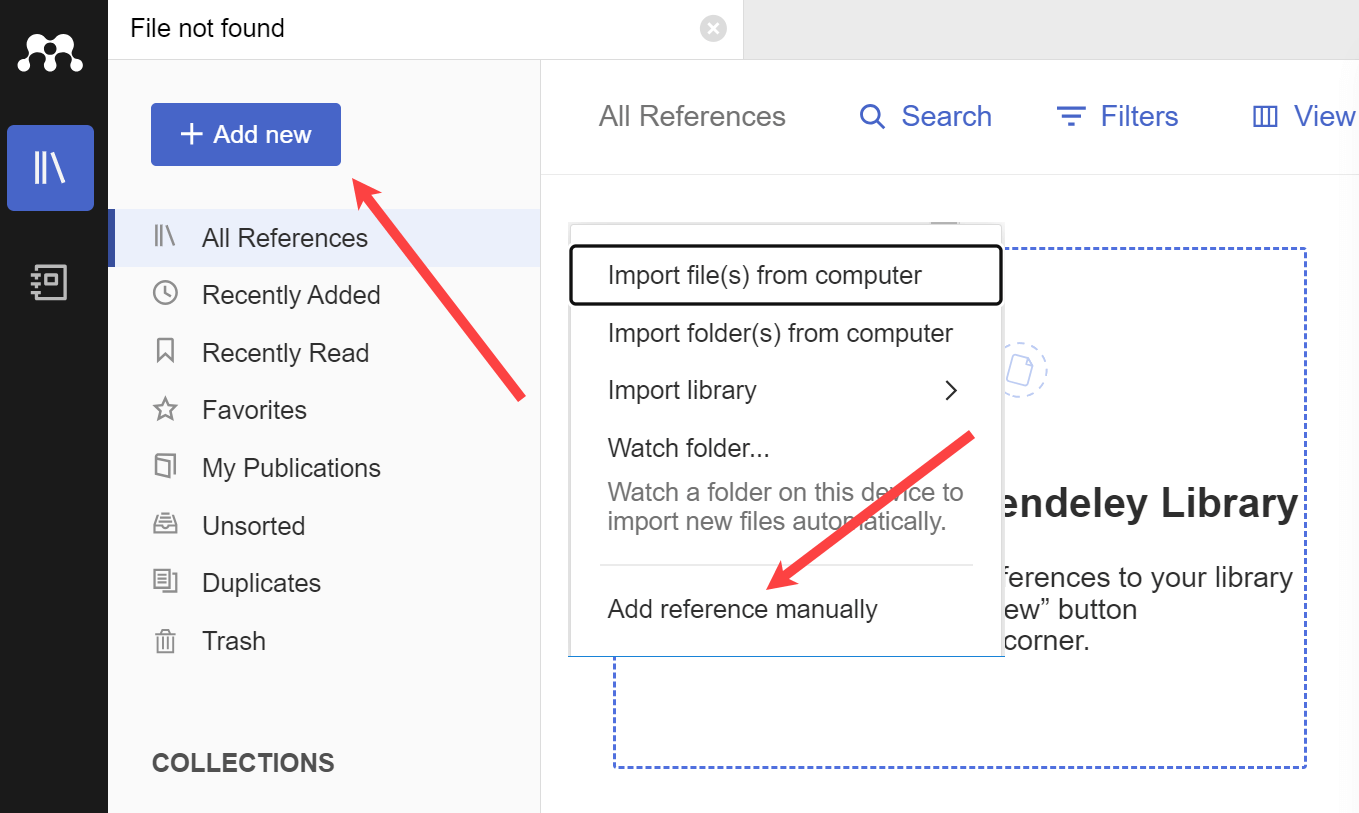 Figure 10: Select Add Reference Manually
- Select the Reference Type, for example, Journal Article (see Figure 11).
Complete the fields displayed.
Note: Different fields are displayed for different reference types (e.g., books, reports, web page). - Select Add entry.
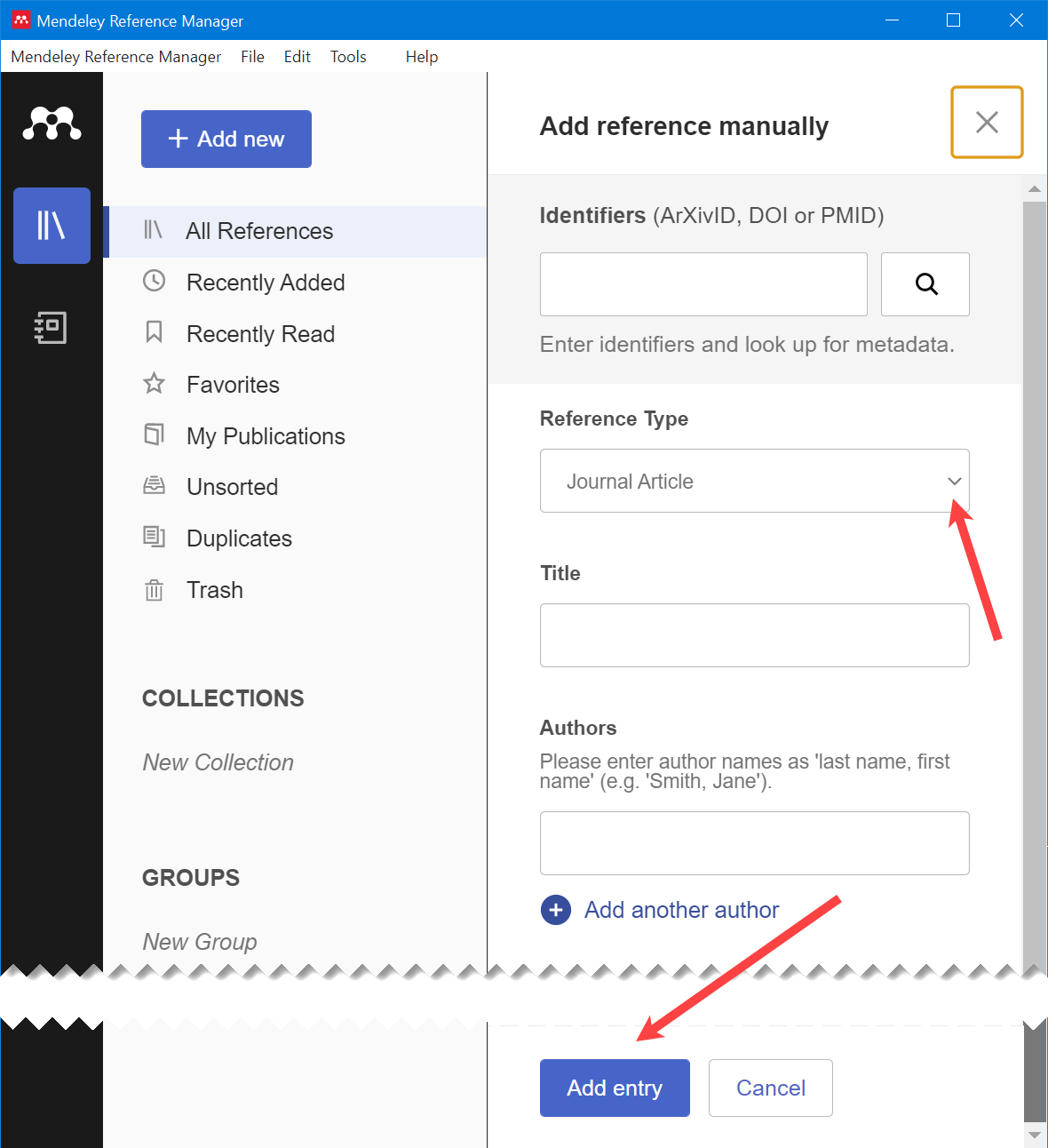 Figure 11: Select Reference Type and Add Details
The process is much quicker if you have an identifier (such as a DOI) for the journal article.
Add the citation details as follows:
- Enter the identifier, for example DOI, (see Figure 12).
- Select the Search icon.
The citation details will be added to the form. - Select Add entry at the bottom of the screen.
The citation details will be automatically added to the Mendeley Refence library (see Figure 13).
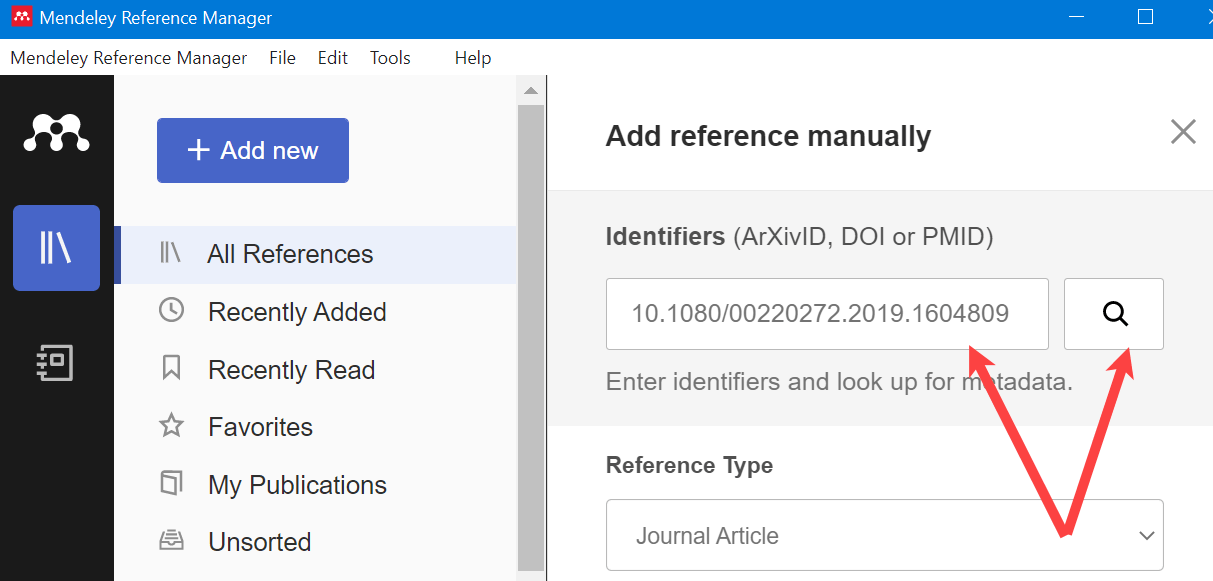 Figure 12: Add Journal Citation Details Using a DOI
 Figure 13: Result of DOI Search
Add Citation Details From a Computer File
Add citation details of a file on your computer into the Mendeley library as follows:
- Select Add new (see Figure 14).
- Select Import file(s) from computer.
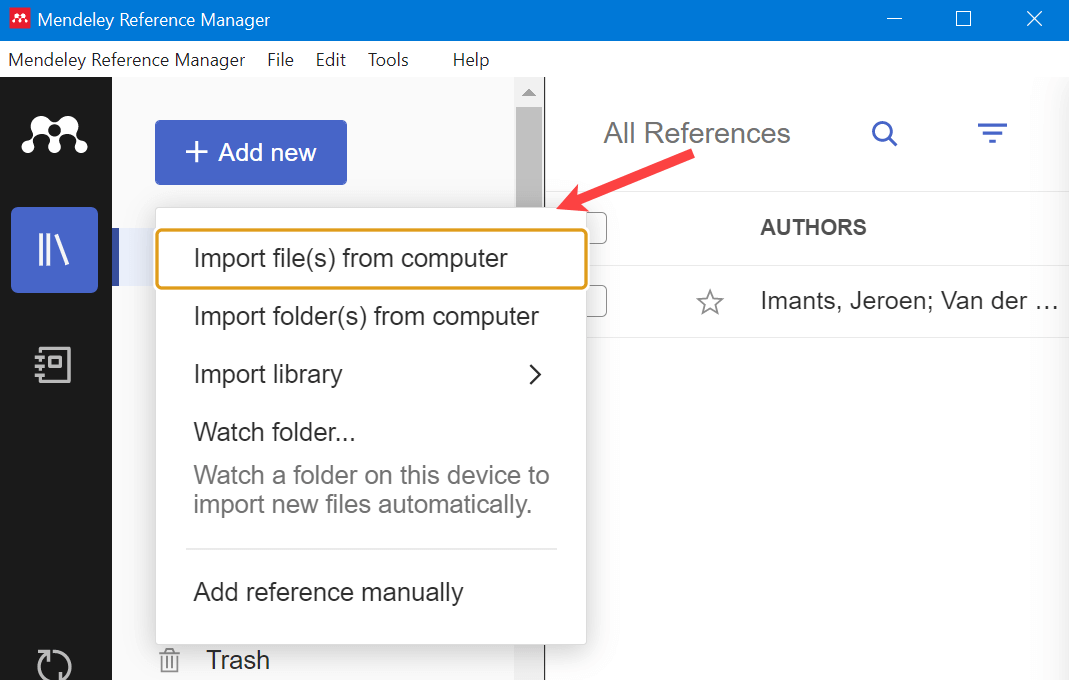 Figure 14: Select Import Files from Computer
- Find the file on your computer (see Figure 15).
Select Open.
The citation details will be added to your Mendeley library (see Figure 16).
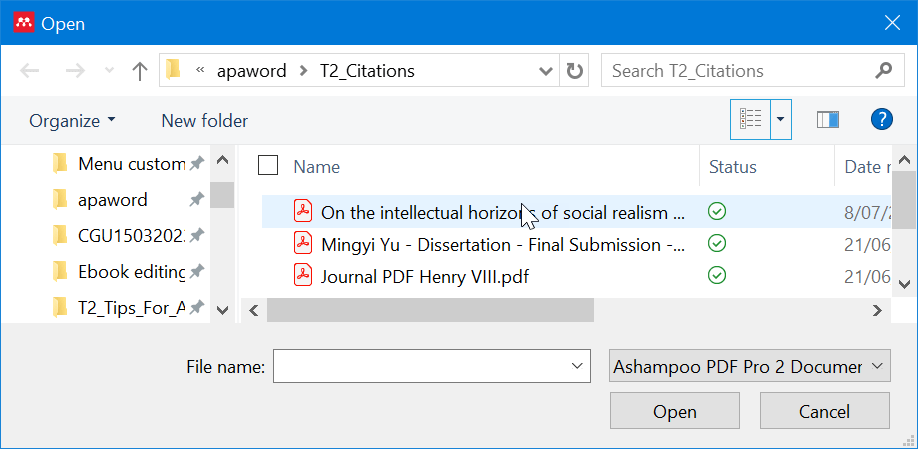 Figure 15: Select File for Importation
 Figure 16: Citation Details Added to Mendeley Library
Search and Add Online Articles
You can find online articles using the Mendeley search tool.
You can add the citation, and often the file, to your Mendeley library if you find the article useful.
Add the citation as follows:
- Select the Tools tab (see Figure 17).
- Select Search for articles online.
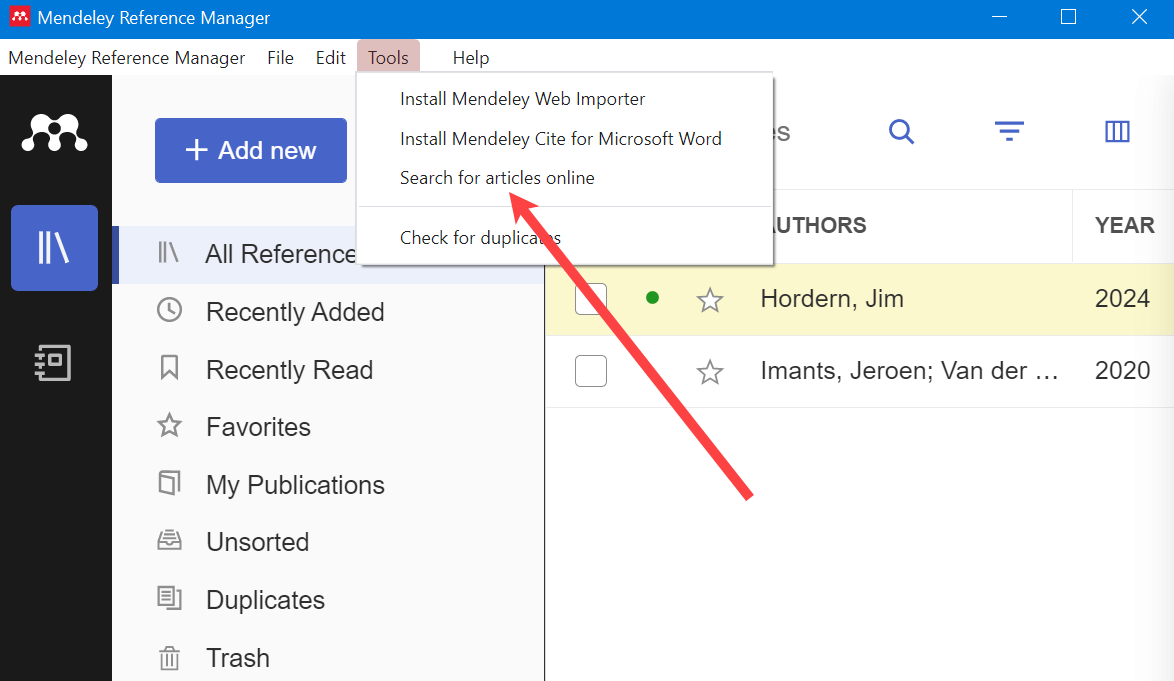 Figure 17: Select Mendeley Search Tool
- Enter keywords (e.g., USA education) in the Mendeley search box (see Figure 18).
- Select Search.
 Figure 18: Mendeley Keyword Search Box
- Select article from search results (see Figure 19).
- Select Add to Library.
The citation details are added to the Mendeley library (see Figure 20).
You can also view and save the file.
 Figure 19: Search Results from Mendeley Search
 Figure 20: Citation from Search in the Mendeley Library
How to Use Mendeley to Add In-text Citations in APA Format
In-text Citations
Cite in-text as follows:
- Select (e.g., left-mouse click or tap) the position of the citation (see Figure 21).
- Select the References tab and then the Mendeley Cite command.
The Mendeley Cite Panel will appear (see Figure 22).
 Figure 21: Select Insertion Point for the Citation
- Select Citation Settings (see Figure 22).
Set Citation Style to American Psychological Association 7th edition if not already set.
You should only have to do this once, that is, when using Mendeley for APA 7 formatting the first time.
 Figure 22: Select APA 7 as the Citation Style
- Select References in Mendeley Cite panel (see Figure 23).
- Select the reference you wish to cite.
- Select Insert 1 citation.
Note:You can insert more than 1 citation which will be reflected in the Insert citation button, for example, Insert 2 citations.
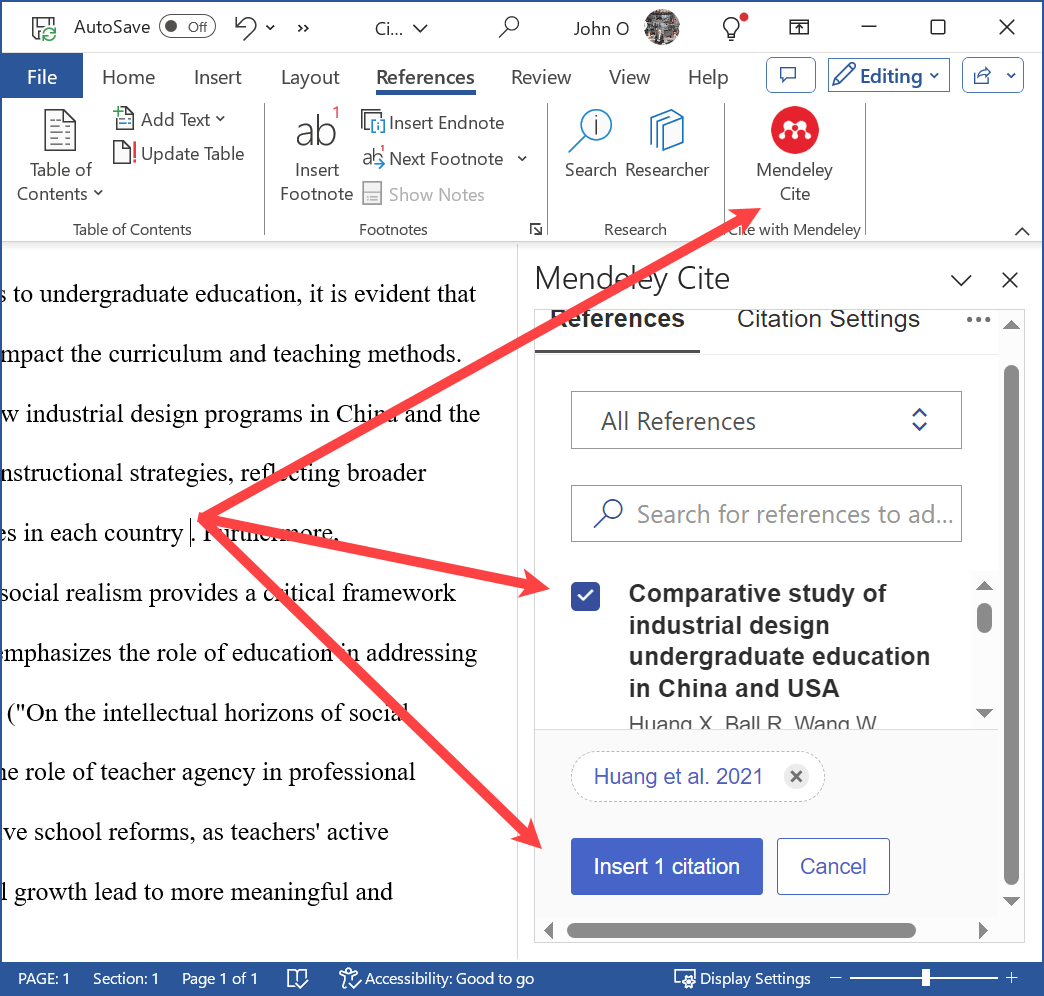 Figure 23: Select the Reference for Citation in the Text
Figure 24 shows three citations inserted by Mendeley.
 Figure 24: Example of In-text Citations Inserted by Mendeley
How to Use Mendeley to Create a Reference List
Insert the reference list as follows:
- Position the cursor where you want the Reference list to be inserted (e.g. on a new page with the heading References).
- Select More (the grey button with the three dots - see Figure 25).
- Select Insert Bibliography.
Note: Mendeley uses the term "Bibliography". The APA 7 term is "References".
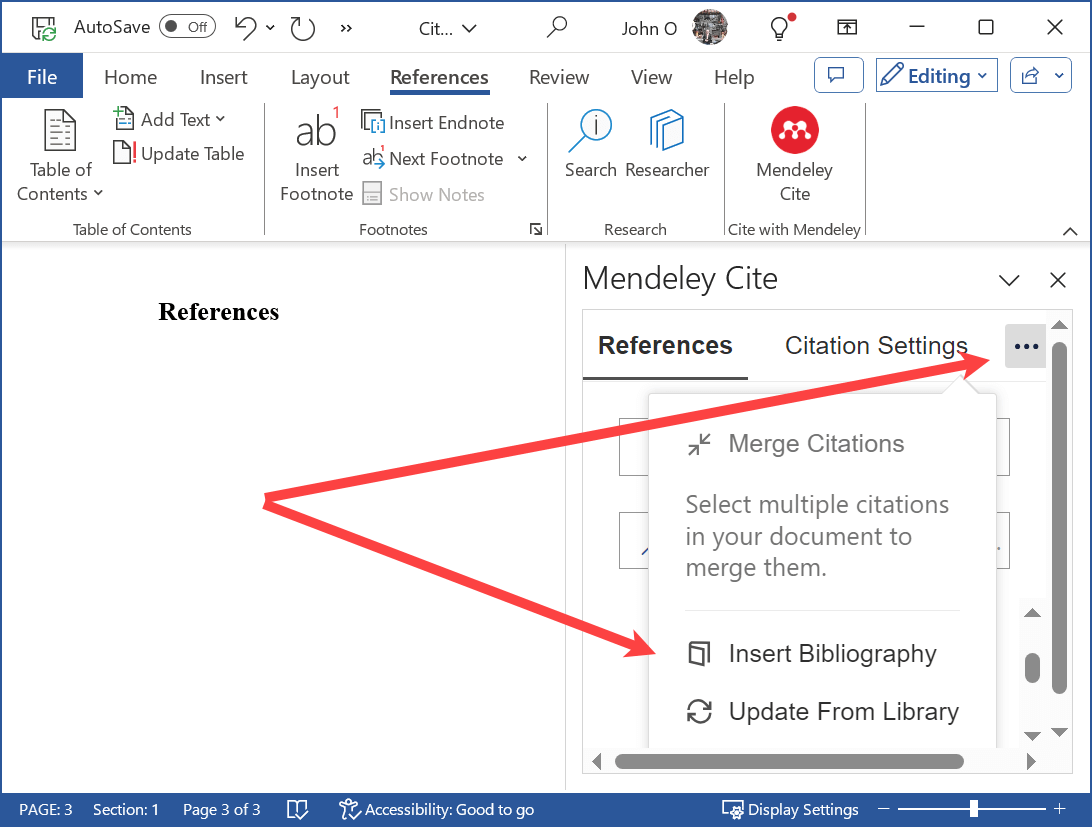 Figure 25: Insert Reference List
Figure 26 shows the reference list produced by Mendeley.
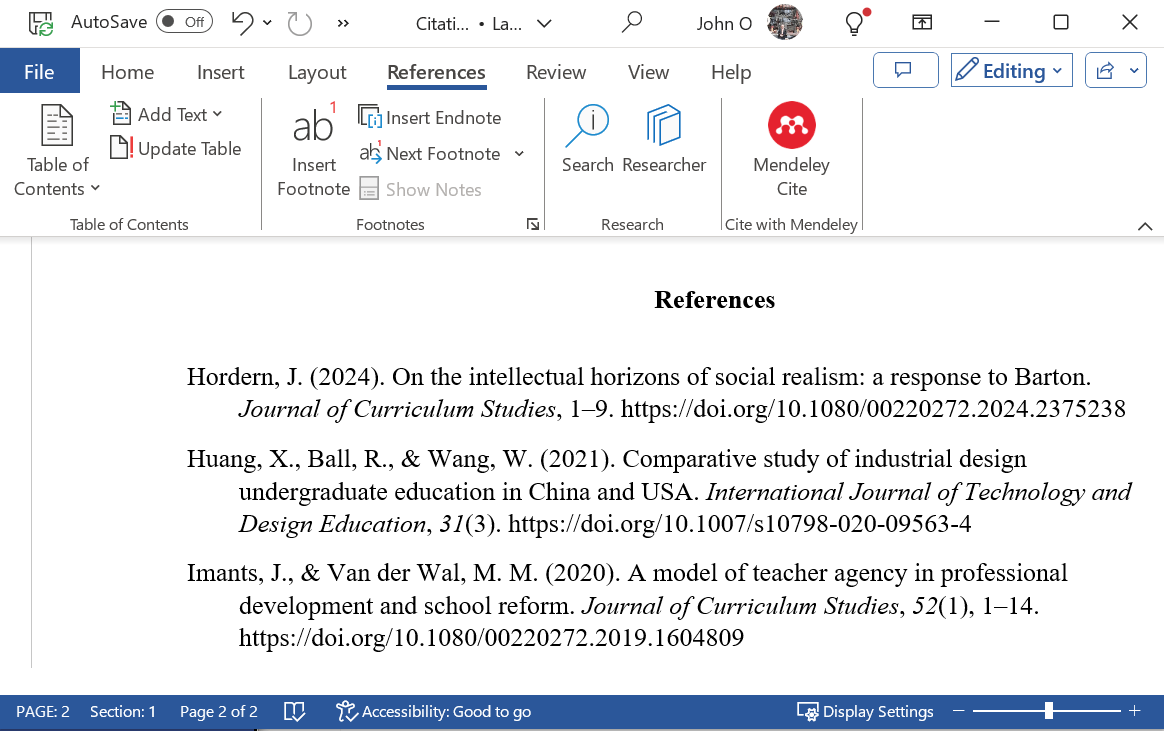 Figure 26: Reference List Created by Mendeley
Note: You will have to double space the reference list.
Summary
Learning how to use Mendeley (which is free) will save you a lot of time by formatting your citations and reference list in the style you have chosen, for example, APA.
Using Mendeley involves the following steps:
- Download the Mendeley Reference Manager and the Web Importer (first time only).
- Add the citation to Mendeley.
- Add your citation to your document (e.g., eassay, literature review, thesis).
- Specify your citation style, for example, APA 7 (first time only).
- Create the reference list.