- Home
- Citation Generators
- Zotero
How to Use Zotero
Knowing how to use Zotero (a powerful and free citation generator) will significantly enhance your research and writing process.
Managing your references is crucial but it can be time-consuming, and errors can be easily made.
Zotero streamlines this task, allowing you to easily collect, organize, and cite your sources.
Zotero can save citations directly from the web into your library with a single click.
It supports a wide range of sources, including books, journal articles, and websites, integrating seamlessly with Microsoft Word (and other word processors like Google Docs).
Throughout, I’ll provide step-by-step instructions and helpful screenshots to walk you through the process of installing Zotero, setting up your library, and making the most of its powerful features.
Learning how to use Zotero is easy and will only take a few minutes.
Once you master Zotero, it will be an invaluable tool in your academic writing.
The process of using Zotero is described as follows:
- Install Zotero if you have not already done so.
- Add citation details (e.g., title, source, date) to the Zotero library.
In many cases, all you have to do is input a DOI number or ISBN. Otherwise, enter the citation information in a drop-down dialog box. - Cite your source in-text in APA format with a single click.
- Add a reference list in APA format with a single click.
A video tutorial is also available if this is your preferred learning style.
And just a reminder, Zotero is available for free. It is an open-source product that has been developed and maintained by volunteer developers.
How to Install Zotero
Skip this step if you already have installed Zotero.
Install Zotero as follows:
- Go to the Zotero website.
- Select the "Download" button.
The Zotero software download and Zotero Connector installation screen appears (see Figure 1).
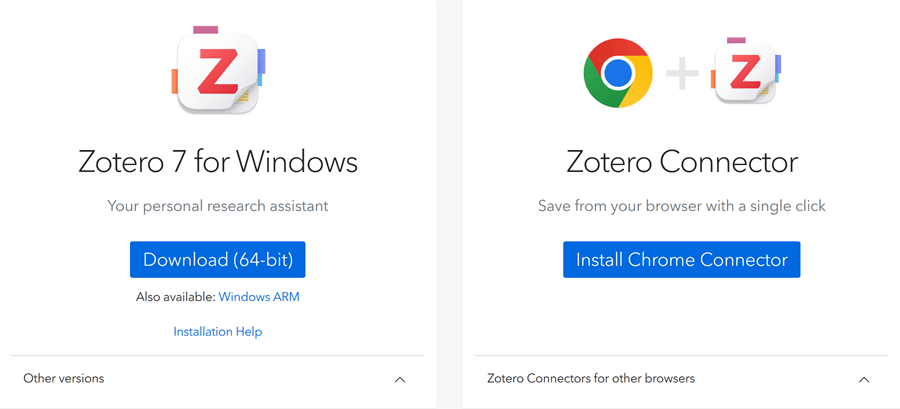 Figure 1: Zotero Download Screen
- Choose the version compatible with your operating system (Windows, macOS, or Linux).
- Download the installer file for the Zotero software.
- Run the setup program to install Zotero.
- Install the Zotero connector.
The Zotero Connector is a browser extension that allows you to save citations and web pages directly to your Zotero library from a Web page.
See the Zotero support page if you have problems or need more information.
You will get the Zotero software, a Zotero tab in your Microsoft Word ribbon, and a Zotero extension in your web browser.
How to Add Citations to the Zotero Library
When you start Zotero for the first time, you will see a screen shown in Figure 2.
No citations have been added yet. You may see some documentation.
 Figure 2: First-time Zotero Screen
The Zotero menu bar includes two options that allow you to add citation information (see Figure 3). They are:
- New Item
Enter the relevant information, such as the author(s), date, title, publisher. - Add item(s) by identifier
Use an identifier such as a DOI or an ISBN.
This is the quickest method if an identifier is available. You can very quickly cite and add to your reference list in APA format.
 Figure 3: The Zotero Menu Bar
Add a New Item
Add a new reference as follows:
- Select the drop-down arrow on the New Item tab (see Figure 4)..
- Select the type of reference (e.g., Book, Journal).
Select More to view additional types of references.
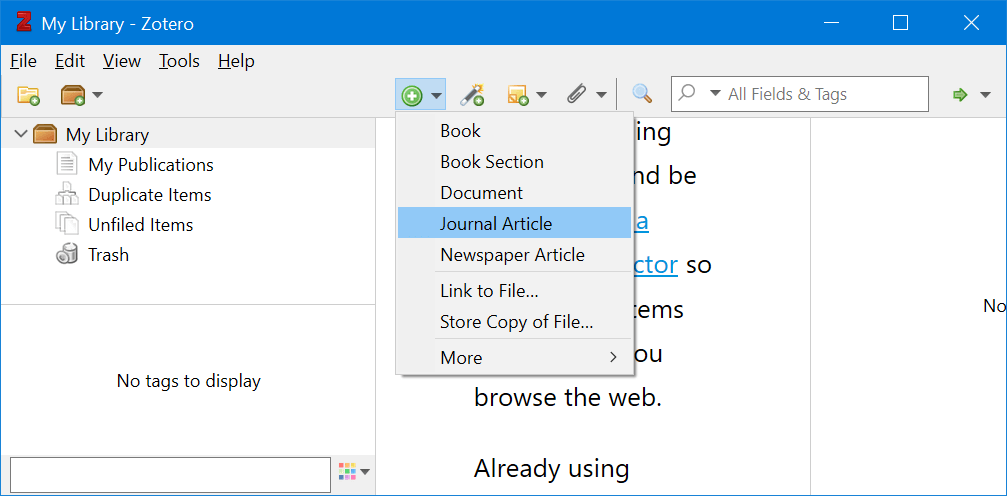 Figure 4: Add a New Item in Zotero
- Enter the citation information (e.g., title, author) for the item (see Figure 5).
The fields will change depending on the type of reference.
Not all fields need to be completed - only the relevant ones.
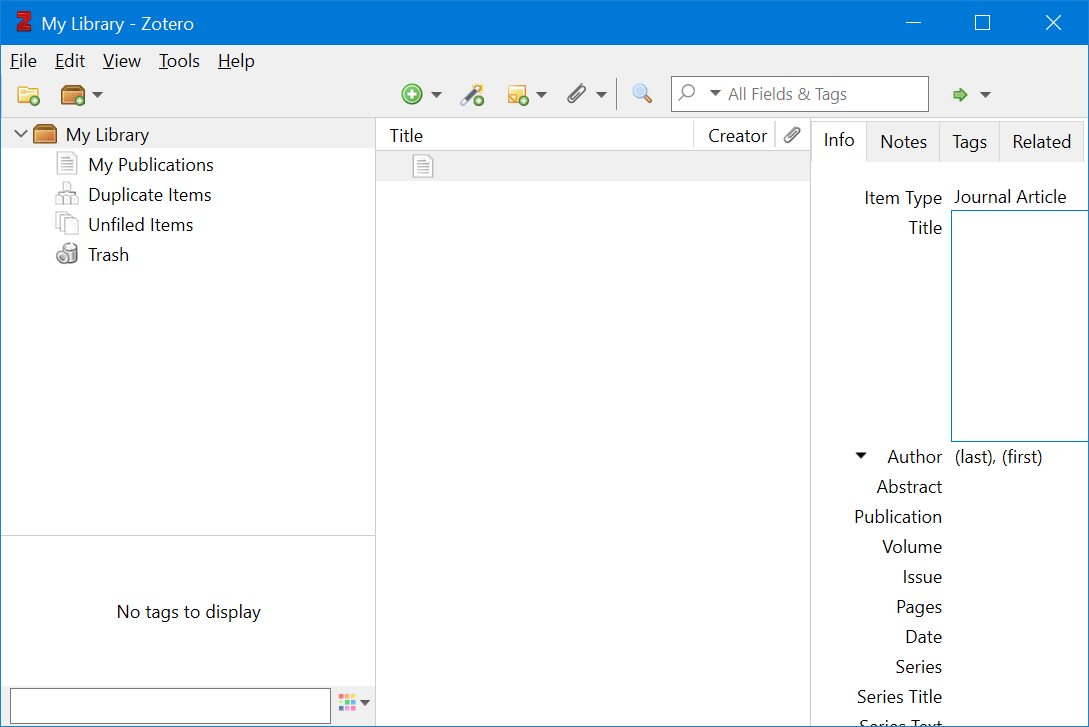 Figure 5: Zotero Screen to Add Reference Data
Add an Item by an Identifier
Add a new reference as follows:
- Select Add Item(s) by Identifier (see Figure 6).
- Input the identifier, for example, the ISBN for a book, DOI for a journal.
- Select Enter.
All the reference data is returned (as long as you are connected to the Internet).
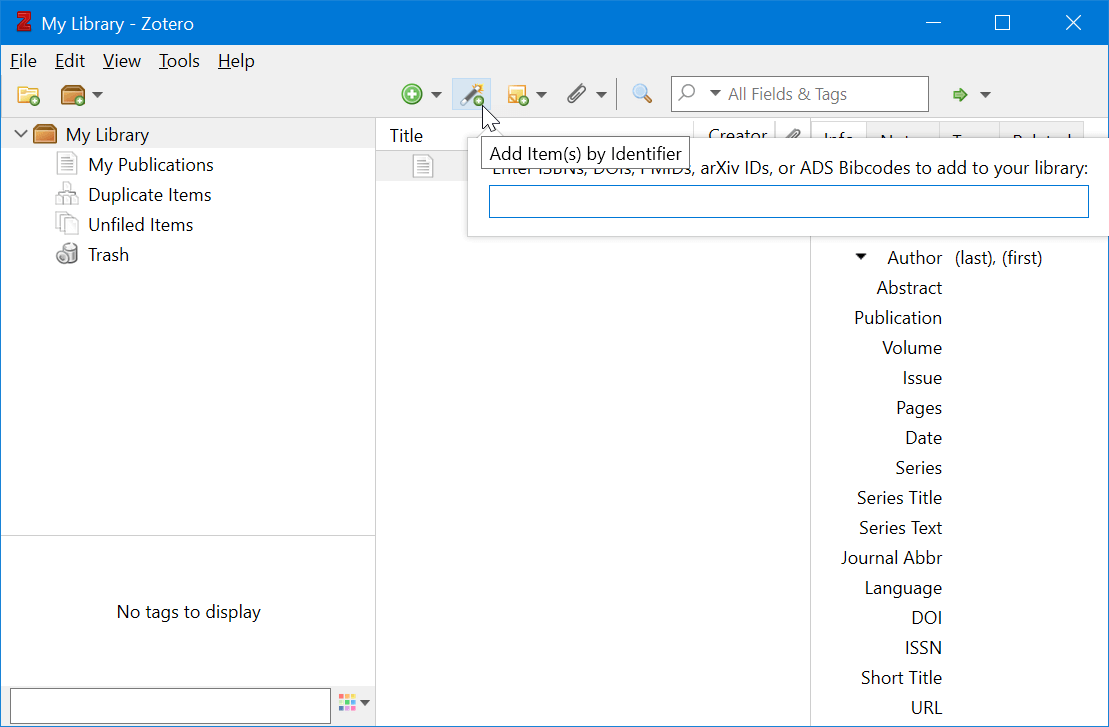 Figure 6: Access Citation Information By an Item Identifier
Figure 7 shows the result of entering the ISBN 9781447227816.
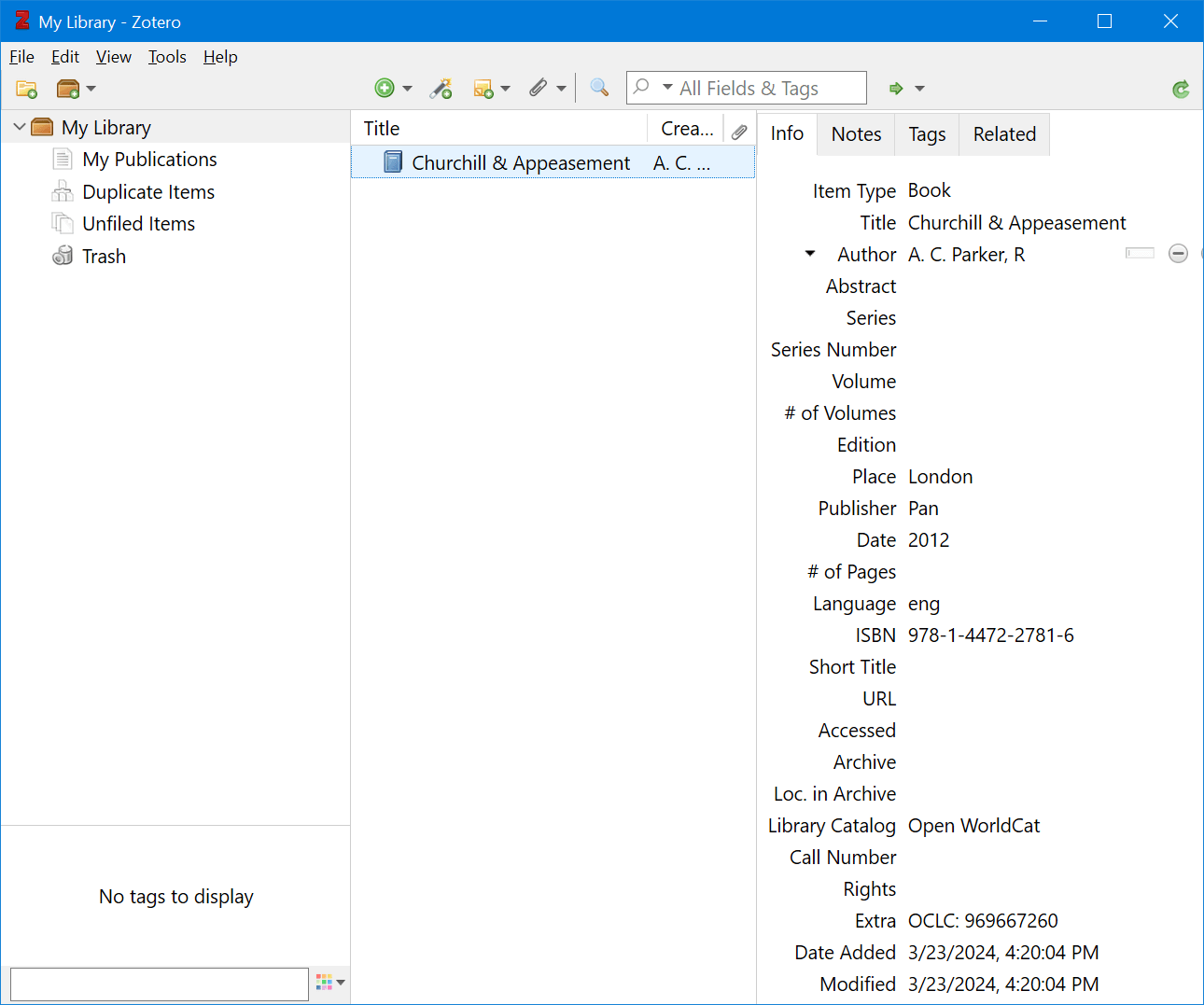 Figure 7: Result from an ISBN Search
Add an Item by the Zotero Connector
If you are viewing an item, for example, a journal article, you can save the citation information directly into Zotero by using the Zero connector extension in your browser.
For example, Figure 8 shows part of a journal article viewed as a Web page.
The Zotero connector extension saves citation information to Zotero.
 Figure 8: Journal Article in a Web Browser Page
Figure 9 shows the citation information that is saved to Zotero.
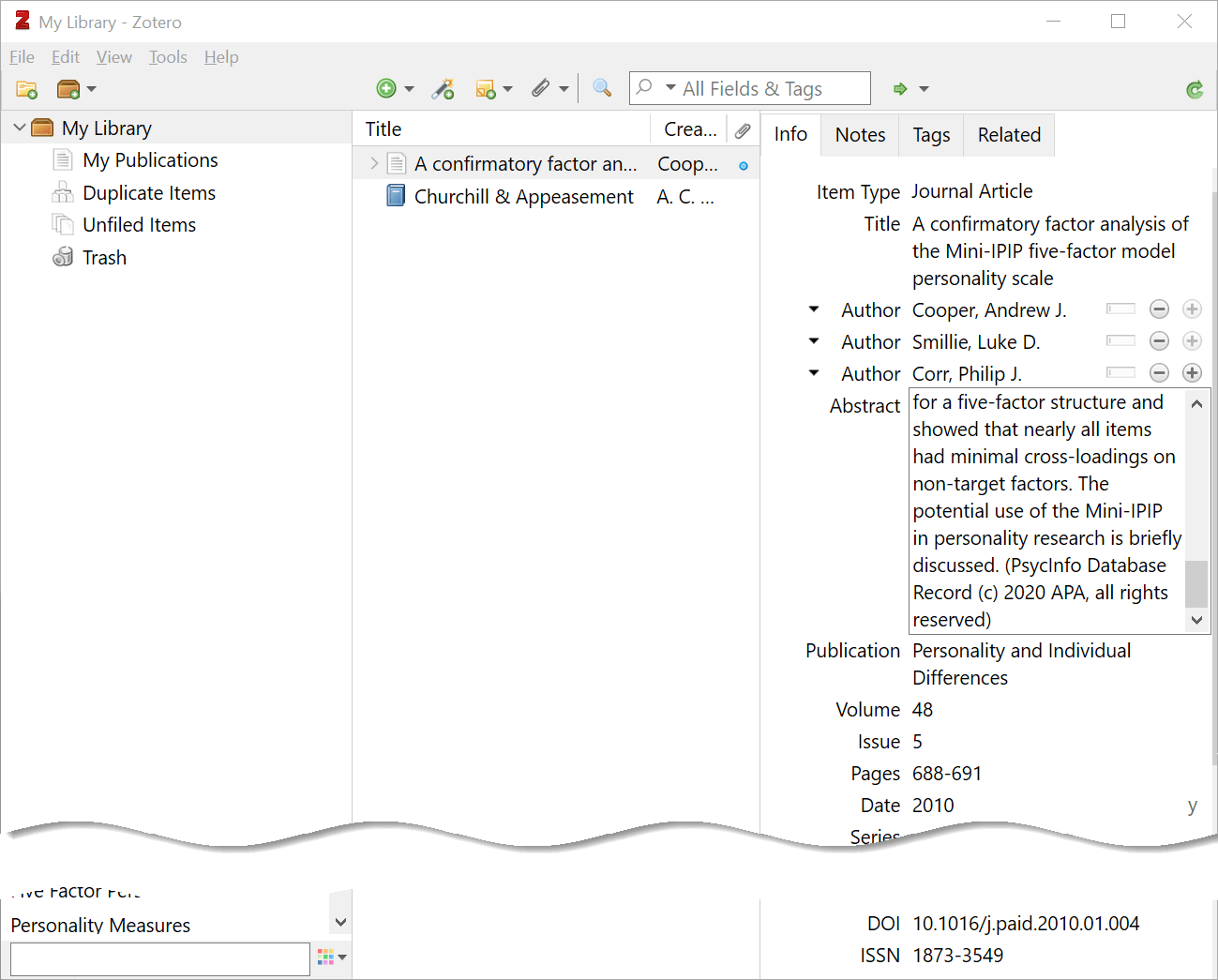 Figure 9: Citation Information from the Zotero Connector
How to Use Zotero to Add In-text Citations in APA Format
Set Citation Style to APA 7
You have added citation(s) to your Zotero library (see above). You can add (or delete) a citation at any time - typically as you find it and use it.
Set your citation style to APA 7 format (once only) as follows:
- Open the Word document that contains (or will contain) your academic writing.
- Select the Zotero tab (see Figure 10).
- Select Document Preferences.
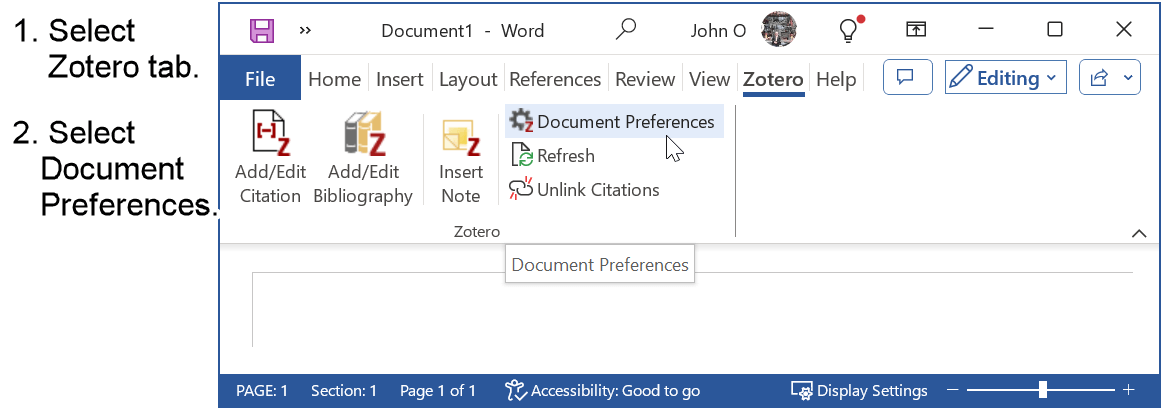 Figure 10. Select Zotero Tab
- Select American Psychological Association (APA 7th edition) to cite in APA format.
- Select OK.
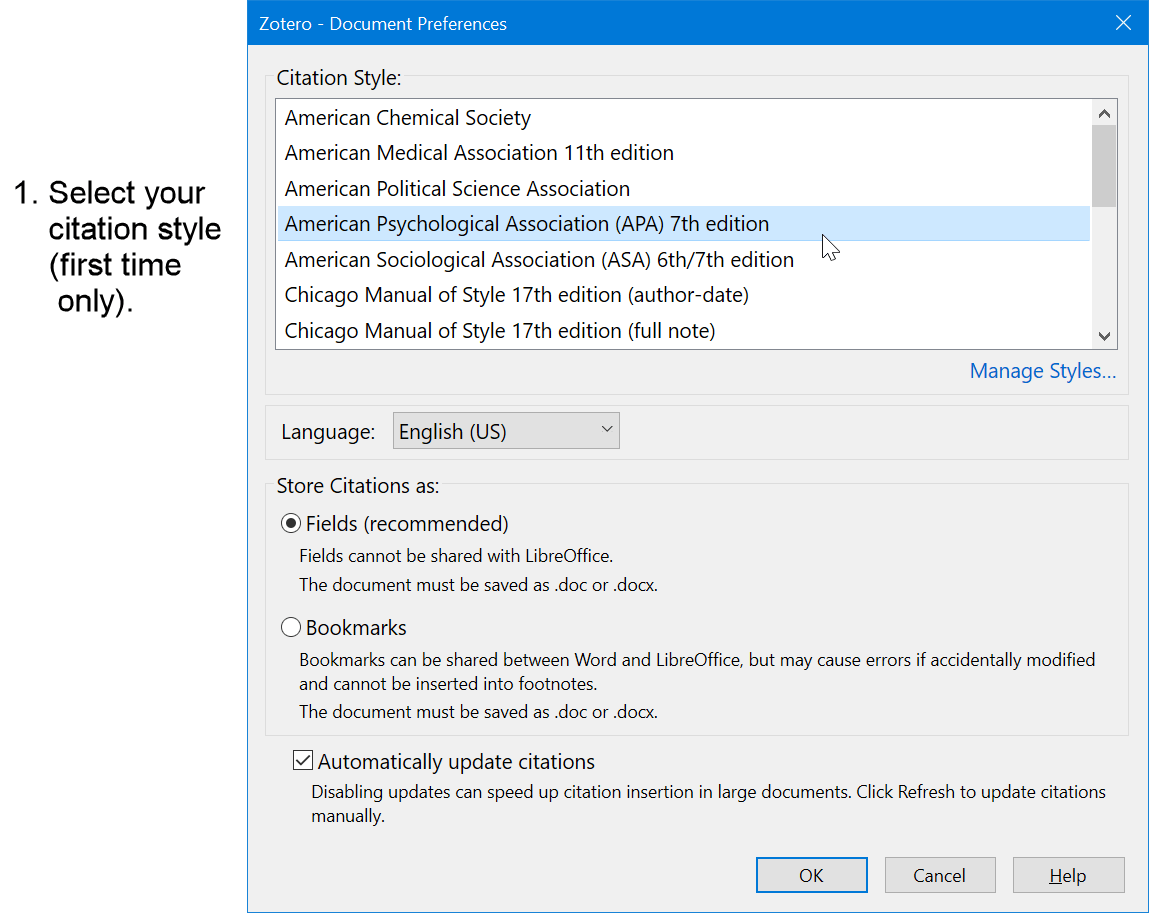 Figure 11: Select APA Citation Style
Add the In-text Citation
Cite your source in your Word document (see Figure 12) as follows:
- Select the place in your document where the in-text citation is to appear.
- Select the Zotero tab in the Word ribbon.
- Select Add/Edit Citation.
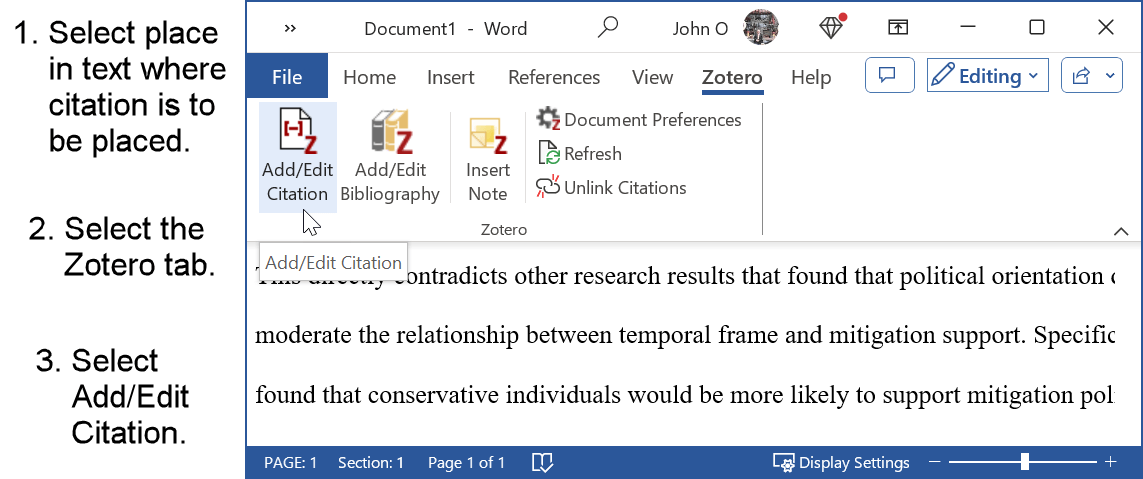 Figure 12: Select Add/Edit Citation in Zotero
You can find the citation in the Zotero library as follows:
- Search the Zotero library with an identifier such as key words in the title or author, or
- Select the work from a full list of works in the Zotero library.
Search by an Identifier
- Select the Zotero tab (if not already selected).
- Select Add/Edit Citation in the Zotero group (see Figure 13).
- Enter the identifying characteristic (e.g., author) in the red bar that appears.
- Select the citation that appears.
The in-text citation is placed in the red bar (see Figure 14). - Select Enter to insert citation into the Word document.
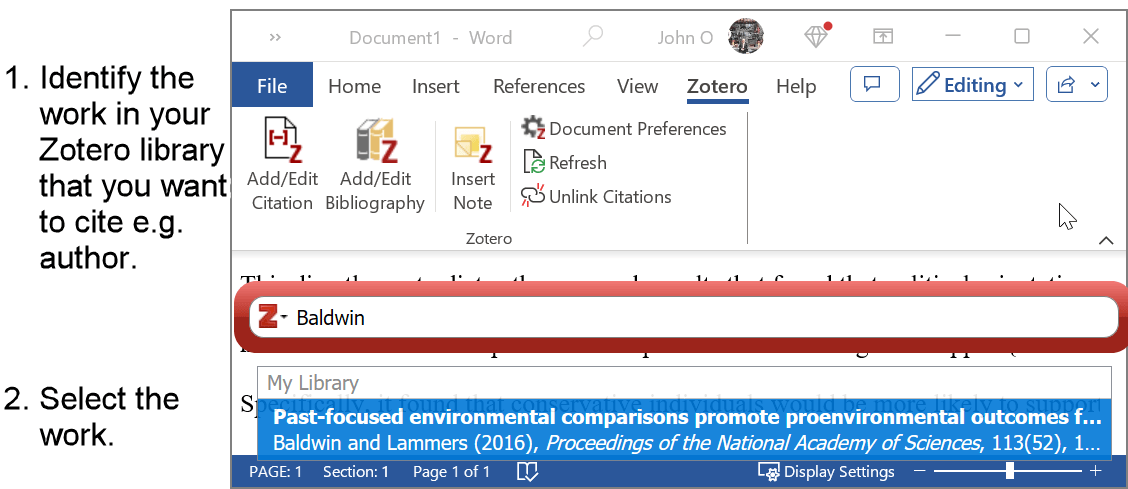 Figure 13: Select Work to Cite
 Figure 14: Citation Displayed in Zotero
Select from the full list in the Zotero library
- Select the Zotero tab (if not already selected).
- Select Add/Edit Citation in the Zotero group.
- Select the down-arrow in the red bar that appears (see Figure 15).
 Figure 15: Zotero Red Bar
- Select Classic View from the drop-down list (see Figure 16).
 Figure 16: Select Classic View
- Select the work from the Zotero library list (see Figure 17).
 Figure 17: Classic View of Sources
Example of an In-text Citation Added
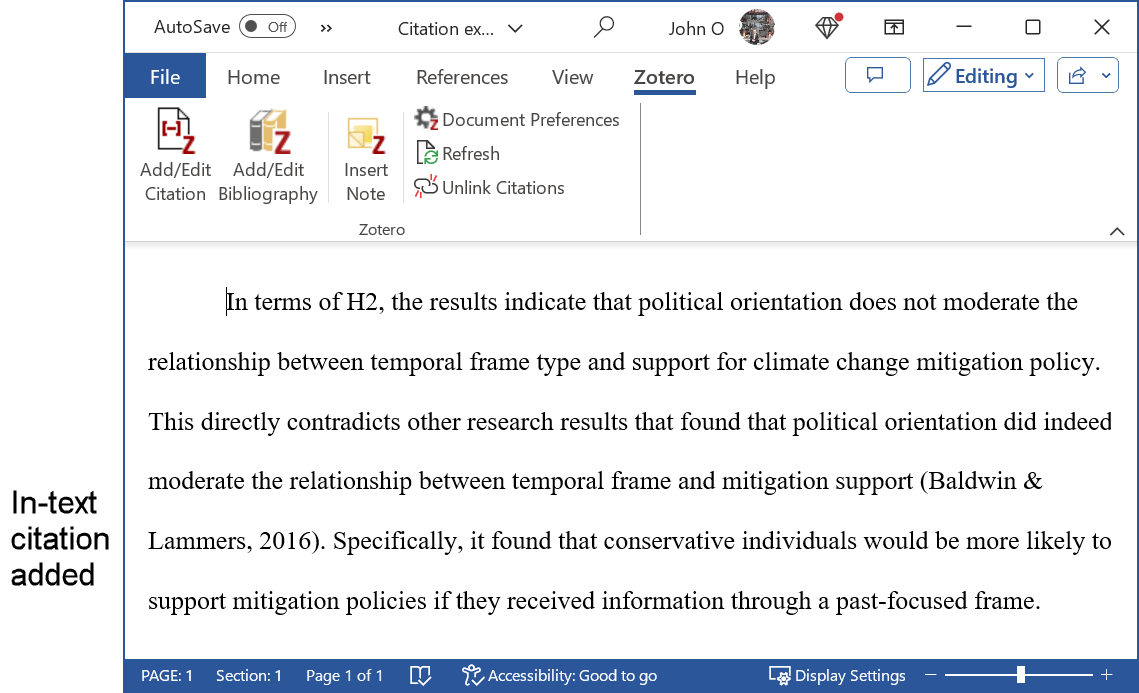 Figure 18: Citation Inserted by Zotero
How to Use Zotero to Add a Narrative Citation in APA Format
A narrative citation in APA format has only the date in brackets.
You need to enter the author(s) yourself immediately before the date.
Zotero allows you to omit the author(s) so that only the date is inserted.
Create a narrative in-text citation (e.g., "Baldwin and Lammers (2016) found that this directly contradicts other research results..." as follows:
- Omit the author from the citation in the Zotero red bar (see Figure 19).
- Select the citation (left-mouse click or equivalent) in the red bar.
- Select Omit Author in the dialog box.
- Press Enter (or equivalent) to insert the date in the text.
- Omit the author from the classic view dialog box.
- Select the drop-down arrow in the red bar.
- Select Classic View (see Figure 20).
- Select Omit Author (see Figure 21).
- Select OK.
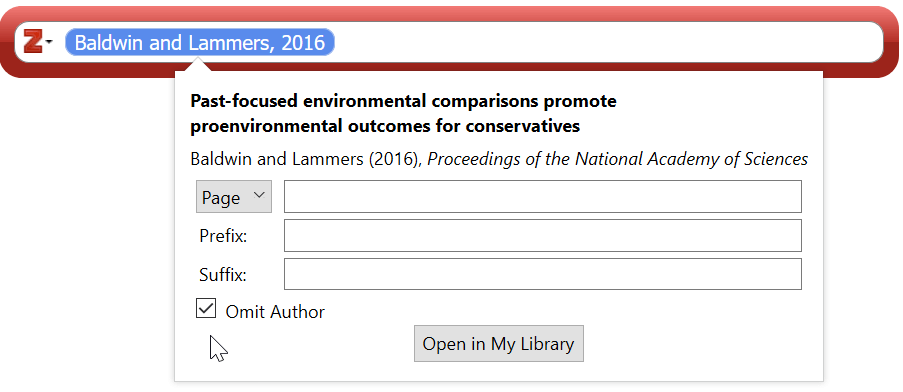 Figure 19: Omit Author from the CitationFigure 20: Omit Author from the Citation
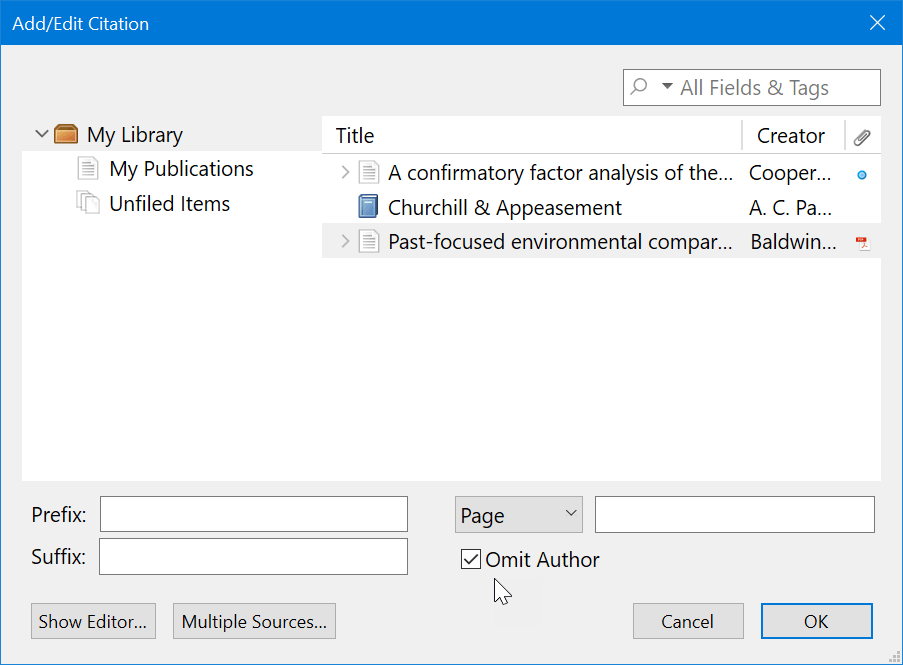 Figure 21: Omit Author from Classic View Dialog
How to Use Zotero to Create a Reference List
You can create a reference list any time, but I recommend you do so after you have inserted your first in-text citation.
Zotero automatically updates the reference list whenever you add an in-text citation.
Create a Reference list as follows:
- Create a page with the heading References. This is at the end of the document, often the last page.
- Place your cursor in the first line of the reference page (see Figure 22).
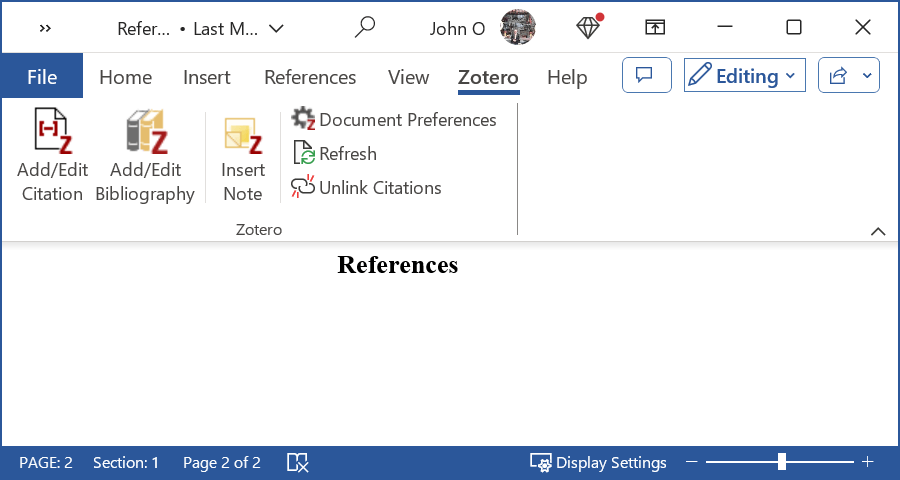 Figure 22: Blank Reference Page
- Select Add/Edit Bibliography from the Zotero tab in the Word ribbon (see Figure 23). The reference list is created.
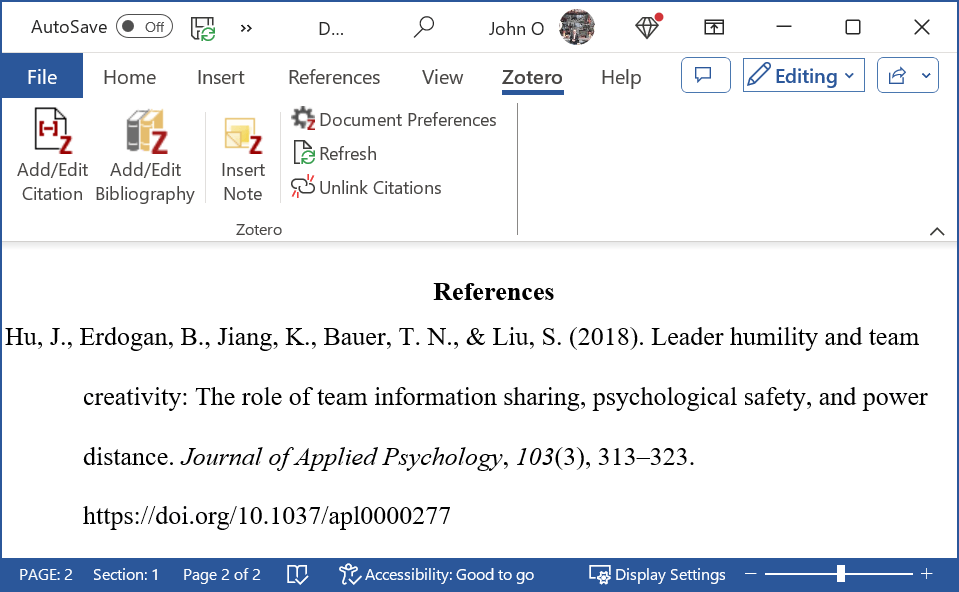 Figure 23: First Citation in the Reference List
When the next citation is added (see Figure 24), the reference list is automatically updated (see Figure 25).
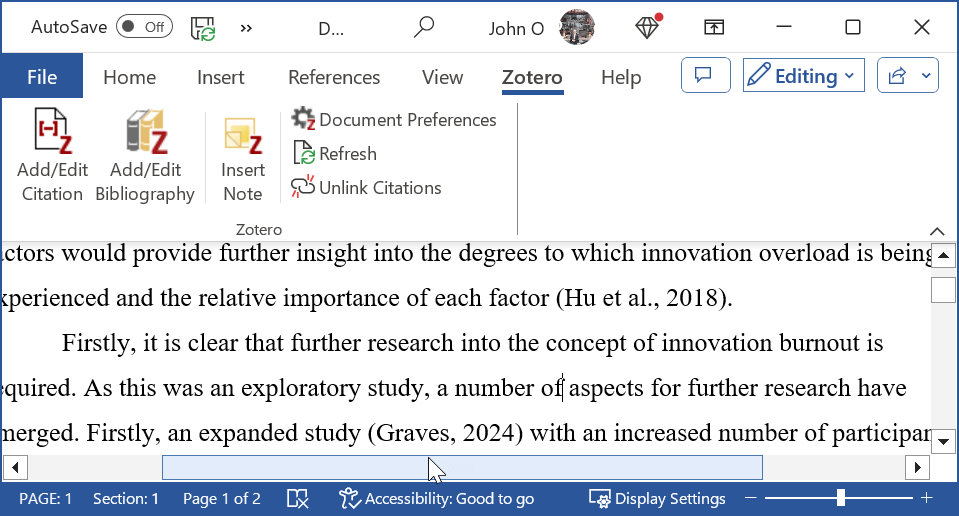 Figure 24: Second Citation Added In-text
 Figure 25: Updated Reference List
Every time you add an intext-citation, the reference list will be updated in APA format.
How to Use Zotero Tutorial Video
The following video is presented by Derek from Grad Coach.

The Grad Coach YouTube channel covers all things dissertation, thesis and research related.
This could help you with your academic writing. Check it out!
Summary
It is easy to cite in APA format once you have learnt how to use Zotero which is a free citation generator.
Using Zotero involves the following steps:
- Download the Zotero software and browser connector (first time only).
- Add your citation to Zotero.
- Add your citation to your academic document (e.g., thesis, essay, literature review).
- Specify APA 7 as your style (first time only).
- Set up your reference page.
- Add further citations and references.
You will save yourself a lot of time!
Know Something Interesting About Zotero?
Have you come across any issues?
Do you know any useful shortcuts?
Have you used more advanced features?
Help others who want to know how to use Zotero successfully.
Share your knowledge!
See Other Contributions
Click below to see contributions from other visitors to this page...
Incorrect title capitalization of a journal paper 
I found that the title of a paper in a journal I referenced was in title case and not sentence case - see figure above. Zotero generated the following …